Introduction
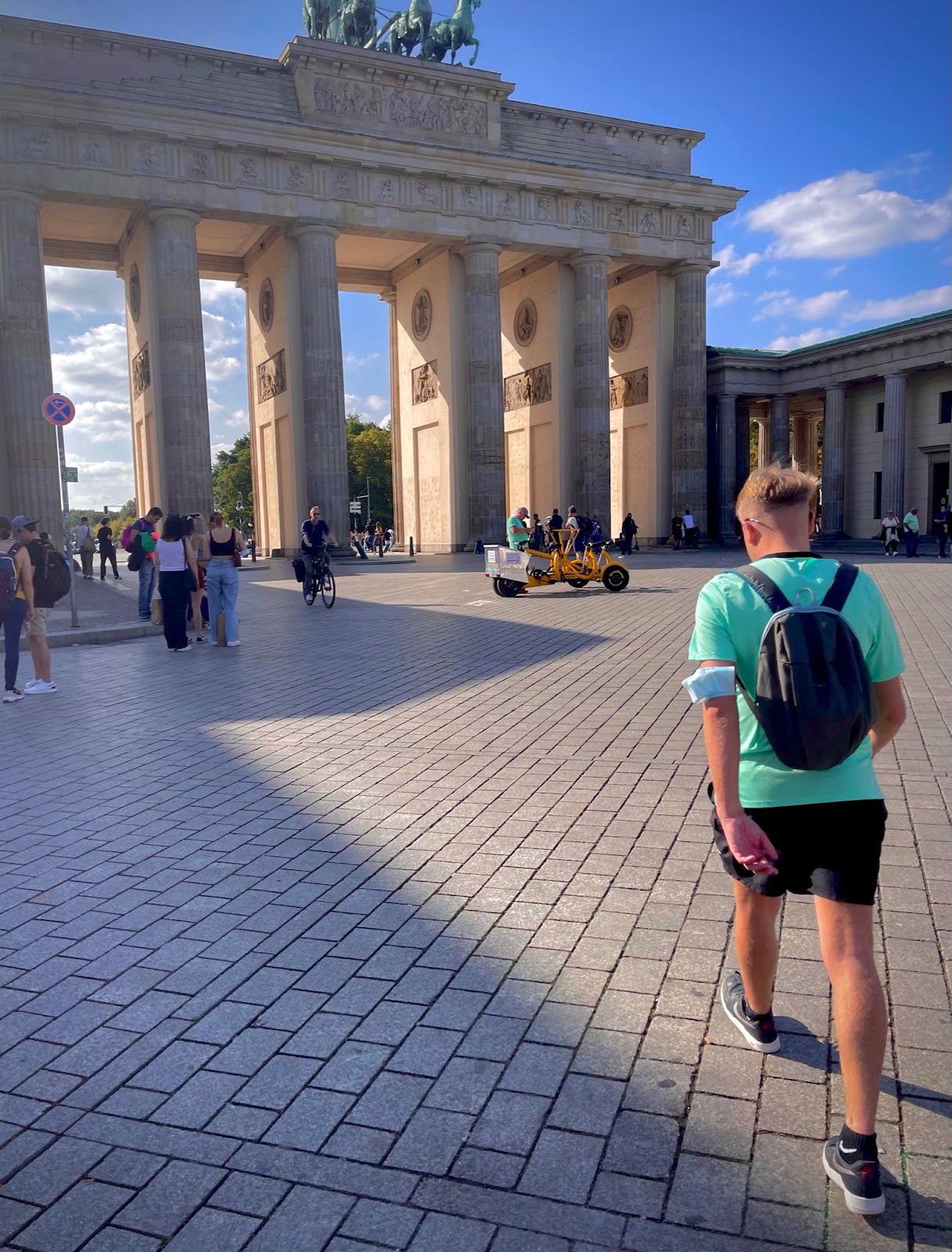
Hey let me introduce myself. I'm Alex Partridge I am 20 years old and from Dublin and currently studying Creative Digital Media at TU Dublin. I am now in second year, I'm super excited to be on campus and meet new people. My goal this semester is to achieve a grade to my best ability and learn new skills, such as collaborating new ideas with my peers in group projects. I also want to enhance my skills in areas of filming and editing this semester. My goal this year is not to leave assignments to "last minute" and try and balance college work and social life. Last year was bittersweet, as I made new friends it was a bummer I wasn't on campus due to covid. The modules I relished last semester was Design Process and Practice and Image Production. I got to learn learn several new skills for instance how to use Adobe Illustrator and Photoshopped software. My biggest accomplished last semester was creating a movie poster for "Avatar the last Airbender" and...

Comments
Post a Comment